Quickstart
GeoLens deploys with one Docker Compose command. This guide takes you from the public installer to a running UI, then shows the source checkout path for development or branch testing.
Prerequisites
Section titled “Prerequisites”- Docker Engine 24.0+ and Docker Compose v2.20+ (verify with
docker compose version) - 8 GB of memory available to Docker (the installer warns below 7 GB)
- Three free host ports (default: 8080, 8001, 5434)
1. Run the public installer
Section titled “1. Run the public installer”curl -fsSL https://getgeolens.com/install.sh | shcd geolensThe one-liner installs the latest published release tag, pulls prebuilt images,
copies .env.example to .env, generates a strong JWT_SECRET_KEY (via
openssl rand -hex 32) and POSTGRES_PASSWORD, prompts for an admin username
(default admin) and password (pressing Enter at the password prompt generates
a strong random password rather than reusing a default), and starts the stack.
It clones and configures GeoLens into a geolens/ directory, so cd geolens
first (as shown above) — every .env and scripts/… command below is relative
to that directory. Retrieve a generated admin password with
grep '^GEOLENS_ADMIN_PASSWORD=' .env.
If you are installing from a source checkout instead:
git clone https://github.com/geolens-io/geolens.gitcd geolensbash scripts/install.shBranch refs and untagged source checkouts build from source instead of pulling
release images; a checkout sitting on an exact release tag pulls the prebuilt
images for that version instead, falling back to a source build if the pull
fails. Either way, scripts/install.sh waits up to five minutes for every
service to report healthy, then prints “GeoLens is ready.” If the stack is
still converging when that budget runs out — common on Apple Silicon, where the
database image runs emulated — it prints “GeoLens is still starting.”
instead and exits cleanly. That is not a failure; watch progress with
docker compose ps. A service that has genuinely died exits non-zero with its
logs. Re-running the script is idempotent; existing .env values are
preserved. On a re-run of an install pinned to a release tag, the script also
checks whether a newer release exists upstream and offers to upgrade
(--upgrade runs scripts/upgrade.sh without prompting).
For the full list of configuration options, see Configuration.
2. Verify services
Section titled “2. Verify services”docker compose psConfirm db, api, worker, titiler, frontend, and backup show as running /
healthy before logging in. The one-shot migrate job runs first and exits, which is expected.
3. First login
Section titled “3. First login”Open http://localhost:8080. Log in with the admin username (default admin)
and the password you chose during install. If the installer generated one,
retrieve it with grep '^GEOLENS_ADMIN_PASSWORD=' .env.
After logging in, follow the admin password rotation guide to rotate or replace the bootstrap admin account.
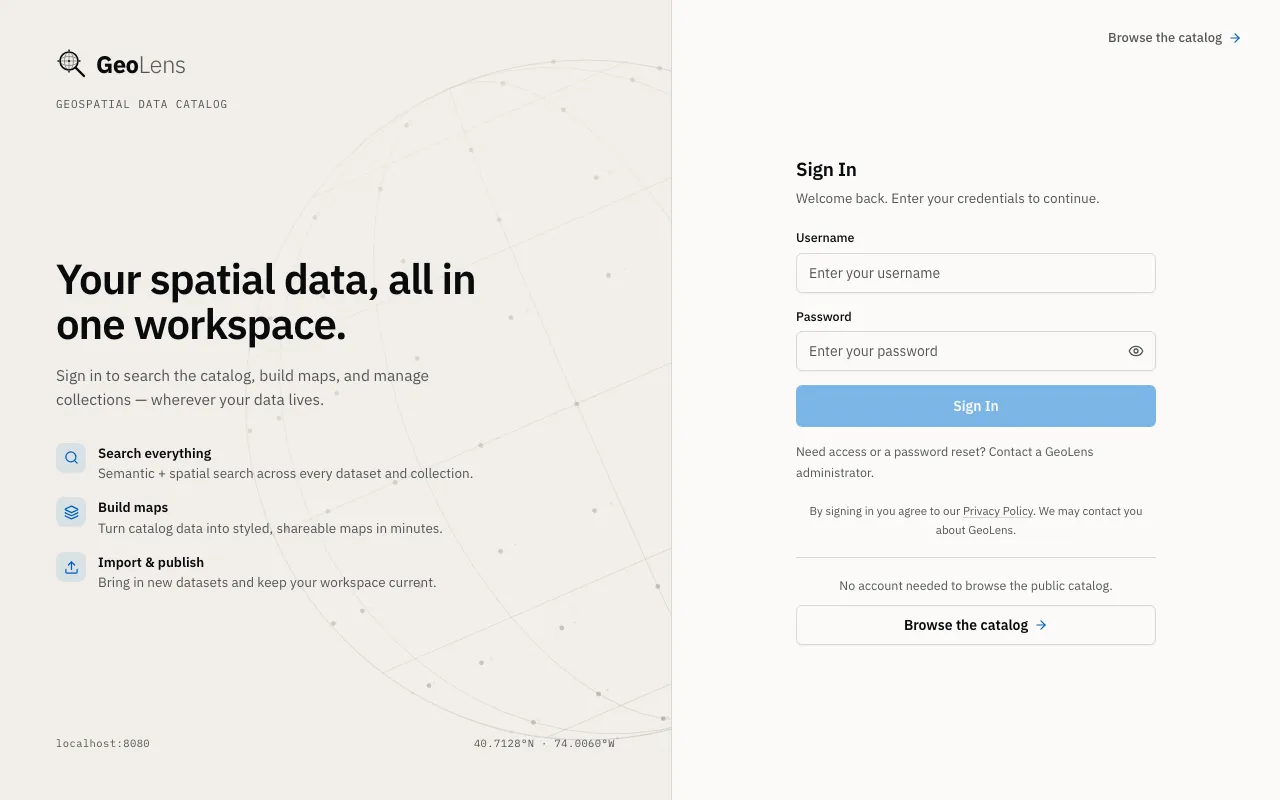
The login page proves you’ve reached the frontend at http://localhost:8080.
Look for the centered username/password card with the GeoLens reticle logo at
the top. After login, a fresh local install shows an empty catalog, which is
expected. Use the seeder scripts in the next section to populate it.
4. Seed sample data
Section titled “4. Seed sample data”After login, your catalog is empty. The fastest way to populate it is the
bundled scripts/seed-showcase.py script. It builds seven showcase maps from
public, openly licensed data by writing into a running GeoLens instance via its
API, plus a few catalog-only datasets, two collections, and a small embed-token
demo: a deliberately private map and dataset whose scoped embed token is
printed at the end of the run, so seeing them is expected. It needs no separate
stack or compose file.
| Showcase map | What it demonstrates | Source |
|---|---|---|
| Restless Earth | multi-layer composition: filtered quake/volcano layers, a heatmap, and a server-styled relief COG | USGS, PB2002, NCEI, ETOPO 2022 |
| Manhattan - A Century of Skyline | 3D fill-extrusion at true roof height, colored by construction era, over the subway | NYC Open Data, MTA |
| The Matterhorn in 3D | 3D terrain mesh + hillshade from a VRT mosaic of COG tiles | swisstopo swissALTI3D 2m lidar |
| Hurricane Alley | categorical styling of 75 years of hurricane tracks, with arrow rendering and line labels | NOAA HURDAT2 |
| Everything That Fell From the Sky | server-side cluster tiles over ~32k meteorite landings | NASA / Meteoritical Society |
| New York From Orbit | Sentinel-2 true-color imagery imported by reference from a STAC API | Element 84 Earth Search |
| Hurricane Exposure | derived analysis: Cat 3+ track legs buffered 100 km, intersected with admin-1 regions and dissolved, each step through the /analysis/materialize/ API so the provenance panel shows the operation chain | NOAA HURDAT2, Natural Earth |
The examples repo’s embed/iframe.html
embeds the demo’s copy of Restless Earth, so you can see the share-and-embed
step before building it.
Seeder prerequisites
Section titled “Seeder prerequisites”The seeder is a Python script that talks to the running GeoLens via its API.
You’ll need Python 3.10 or newer on your host machine (check with
python3 --version) and the httpx package, installed into a virtual
environment in the next step.
The seeder runs on your host, not inside the docker network. It targets
http://localhost:8080 by default; pass --base-url <url> to point at a
different deployment.
Run the demo seeder
Section titled “Run the demo seeder”First make the admin password available to your shell — if the installer
generated it, load it out of .env (run this from the geolens/ directory):
export GEOLENS_ADMIN_PASSWORD="$( grep '^GEOLENS_ADMIN_PASSWORD=' .env | cut -d= -f2-)"Then install httpx into a virtual environment and run the seeder with it. A venv is
the reliable path because recent Python builds — Homebrew on macOS, and
Debian/Ubuntu — refuse pip install into the system interpreter (PEP 668). On
Debian/Ubuntu, install the venv module first with sudo apt install python3-venv:
python3 -m venv .venv.venv/bin/pip install httpx.venv/bin/python scripts/seed-showcase.py \ --username admin --password "$GEOLENS_ADMIN_PASSWORD"Or, with uv, one line handles the dependency with
no venv to manage:
uv run --with httpx scripts/seed-showcase.py \ --username admin --password "$GEOLENS_ADMIN_PASSWORD"The script authenticates with your admin username (default admin) and password.
Pass the password you set or that the installer generated via --password
(or set GEOLENS_ADMIN_PASSWORD in your environment). By default it builds all
seven showcase maps. Three flags trim the heavier downloads for a faster or
lower-bandwidth seed: the Matterhorn terrain hero downloads ~62 COG tiles
(--no-terrain skips it), the Restless Earth relief backdrop is a ~466 MB
ETOPO 2022 download on the worker (--no-oceans skips just that layer), and
the Sentinel-2 map is imported by reference with zero download but needs
Titiler to reach AWS S3 at view time (--no-sentinel2 skips it):
.venv/bin/python scripts/seed-showcase.py --no-terrain \ --username admin --password "$GEOLENS_ADMIN_PASSWORD"Use --only to build a single item - for example --only manhattan,
--only matterhorn, or --only meteorites.
Once the seeder finishes, reload http://localhost:8080. The catalog is now
populated and searchable, with type, keyword, and spatial filters down the
left rail:
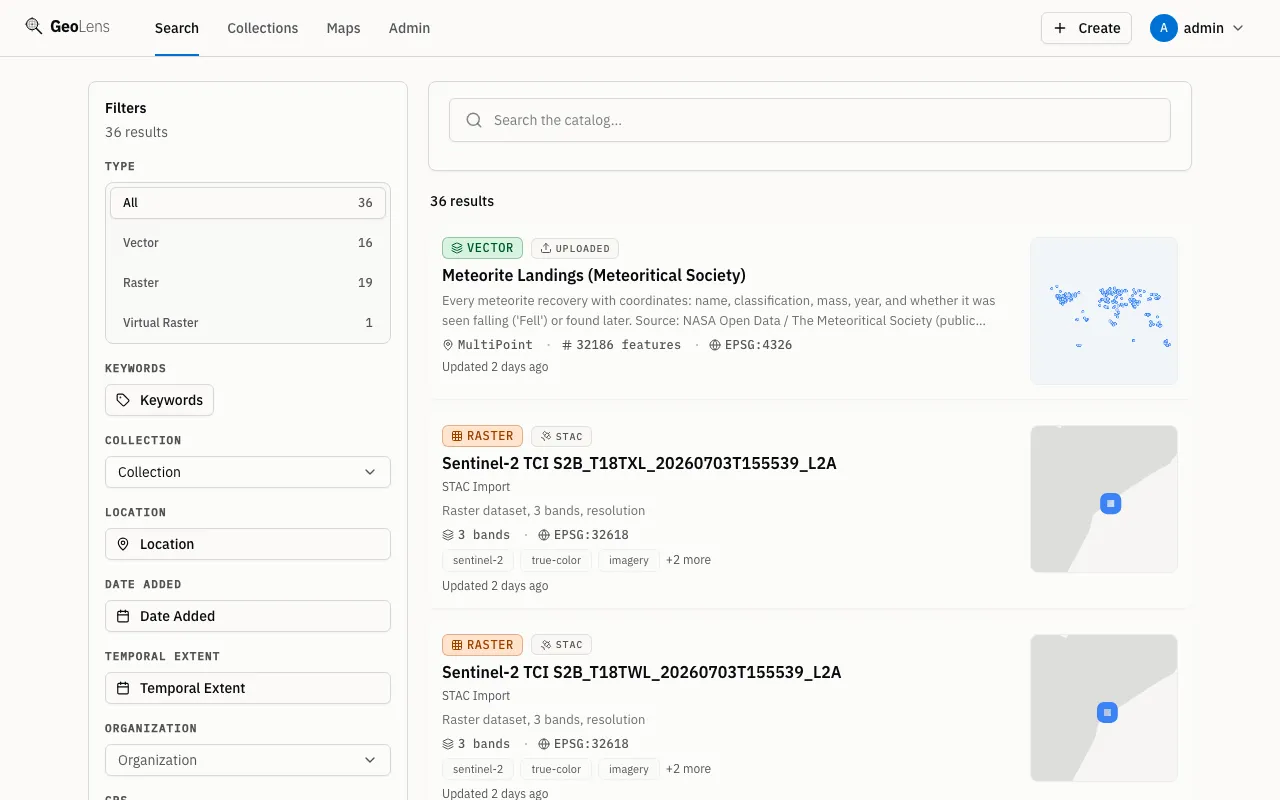
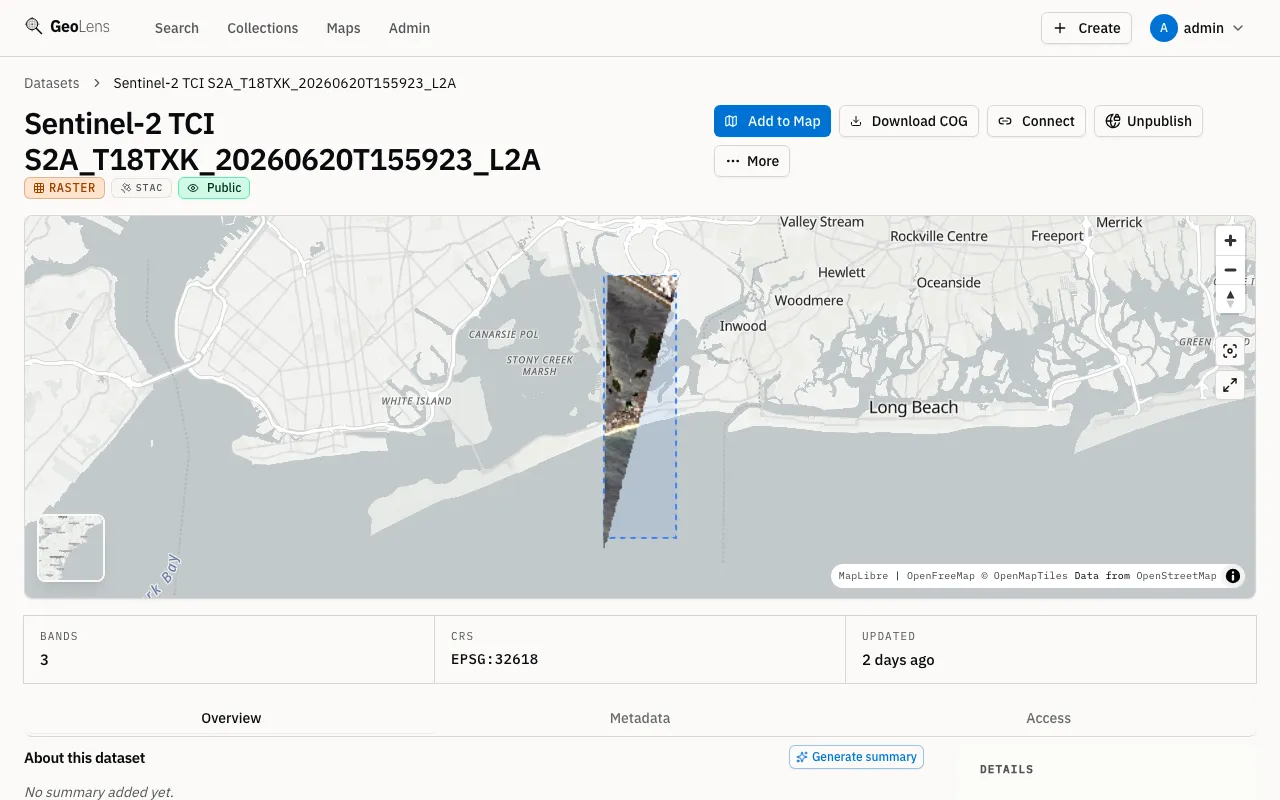
Select any dataset card to open its detail page: metadata, schema, and a live map preview of the data’s extent. The screenshot below shows the detail page for the Sentinel-2 satellite imagery referenced by the New York From Orbit showcase map:
Service topology
Section titled “Service topology”The default docker compose up -d brings up seven services: six long-running (shown
below) plus a one-shot migrate job that applies database migrations and exits. The
diagram below shows how the long-running services connect; MinIO and Valkey appear only
when you opt into --profile cloud-dev.
Next steps
Section titled “Next steps”- Ready to use it? The User Guide covers the day-to-day work: importing your own data, search and discovery, and the Map Builder.
- Going to production? See the Install Guide for full prerequisites, default services, optional profiles, and troubleshooting.
- Configuring users and roles? See the Admin Guide for RBAC, OAuth/OIDC, and backup automation.
- Building integrations? See the API Reference for OGC
endpoints, authentication, and
curlexamples. - Want running code? The examples gallery has working clients for the catalog and APIs you just stood up, arranged by tool.